The EM Platform, end to end
Everything an engineering manager owns - your people, your client accounts, your delivery, your tasks - lives in one place. The skills and the daily routines do the writing for you; your job here is to review the signal and act on it. This is the guided tour of every screen: what you'll see there and what you can do.
1What the platform is
One operating system for the delivery side of your job. It replaces the pile of Notion databases the toolkit used to write to: your 1:1s, wins, feedback, risks, conversations, standups, retros, reports and tasks all live in one Postgres-backed app with a single, consistent look.
Three ideas make it click:
- You only ever see your book. The platform is scoped by who you are. You see the accounts, engagements and people you're assigned to - and nothing else. There is no "switch to someone else's team" - that access simply isn't there.
- The skills write, you decide. Almost nothing here is typed by hand. After a call, a skill reads the transcript and writes the record; the daily routines log your meetings and stage proposals. What lands on screen is a draft for you to confirm, act on, or wave through - never a silent change.
- The numbers are computed, not guessed. Satisfaction scores, risk bands, delivery pace, health index - the platform calculates these from the underlying records by fixed rules. The same inputs always give the same number, so a score you see is one you can trust and explain.
2Finding your way around
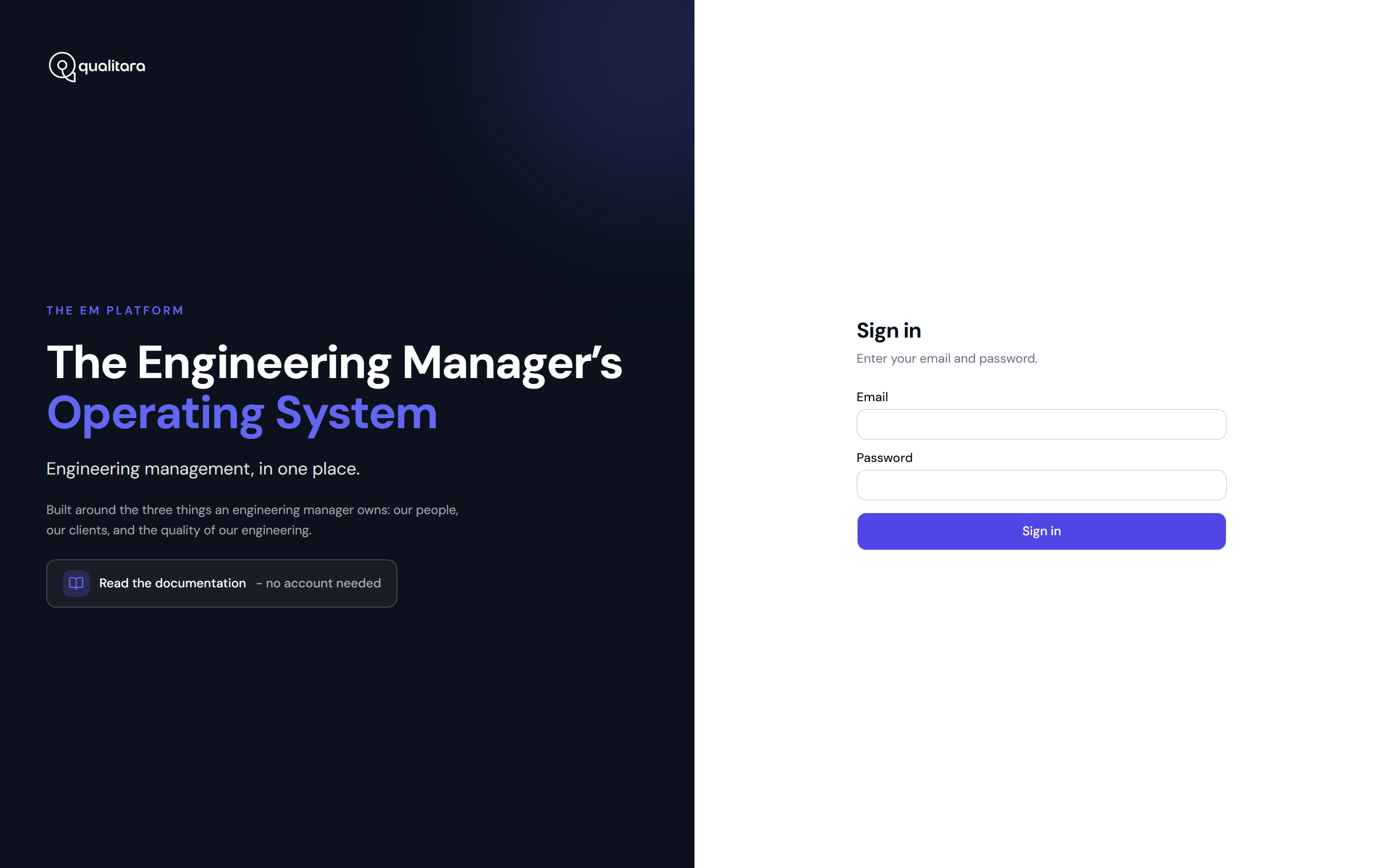
You sign in with your Qualitara email and password on a branded split-panel screen (the docs you're reading are linked right from it). After sign-in you land on Home - unless you're a founder, in which case the platform takes you straight to the read-only founder deck.
Every screen sits inside the same four-column shell. Learn it once and the whole app is navigable:
- The icon rail (far left) is your always-visible spine: the personal modules - Home, Today, Portfolio, Tasks, Coaching - then Tools, then your three pillars: People management, Accounts, Engineering. Founders get a Founder item and admins get Org / Admin / BigMac criteria items; everyone else never sees those. Your avatar sits at the bottom with the sign-out menu.
- The context panel (second column) changes with where you are. It carries the account scope switcher and the sub-navigation for the current module - the "which view inside this area" list.
- The center canvas is the page itself, topped by a breadcrumb, the Jump to anything command pill, and the + Task quick-add button. Top-level pages open on an airy, light hero - a big-number vitals band - and detail pages on a compact record header.
- The Today rail (far right) is your persistent attention queue - the dated "Today - N items need you" list, with one-tap resolve actions: Done for a task, Followed up for feedback, Reviewed for a risk, plus snooze (3 days / 1 week) and dismiss in the … menu, and quick-log shortcuts (Log 1:1, Log conversation, Add risk) at the top.
Three cross-cutting tools are always within reach:
- Scope switcher. At the top of the context panel, pick one account to focus every pillar list on it, or All accounts to see your whole book. Portfolio, Coaching, Supervision and Meeting load deliberately ignore scope - they're always cross-account and personal.
- Command palette. Press
Cmd-K(orCtrl-K), or click the Jump to anything pill, and start typing to jump straight to any account, engagement, teammate or stakeholder. - Quick-add task. The + Task button, top-right on every page, drops a task onto any account without leaving what you're doing.
3Your personal modulesPersonal
Five screens are yours alone - they span every account you own and never follow the scope switcher.
Home - the command deck
Home answers "what needs me today?" before you've opened anything else.
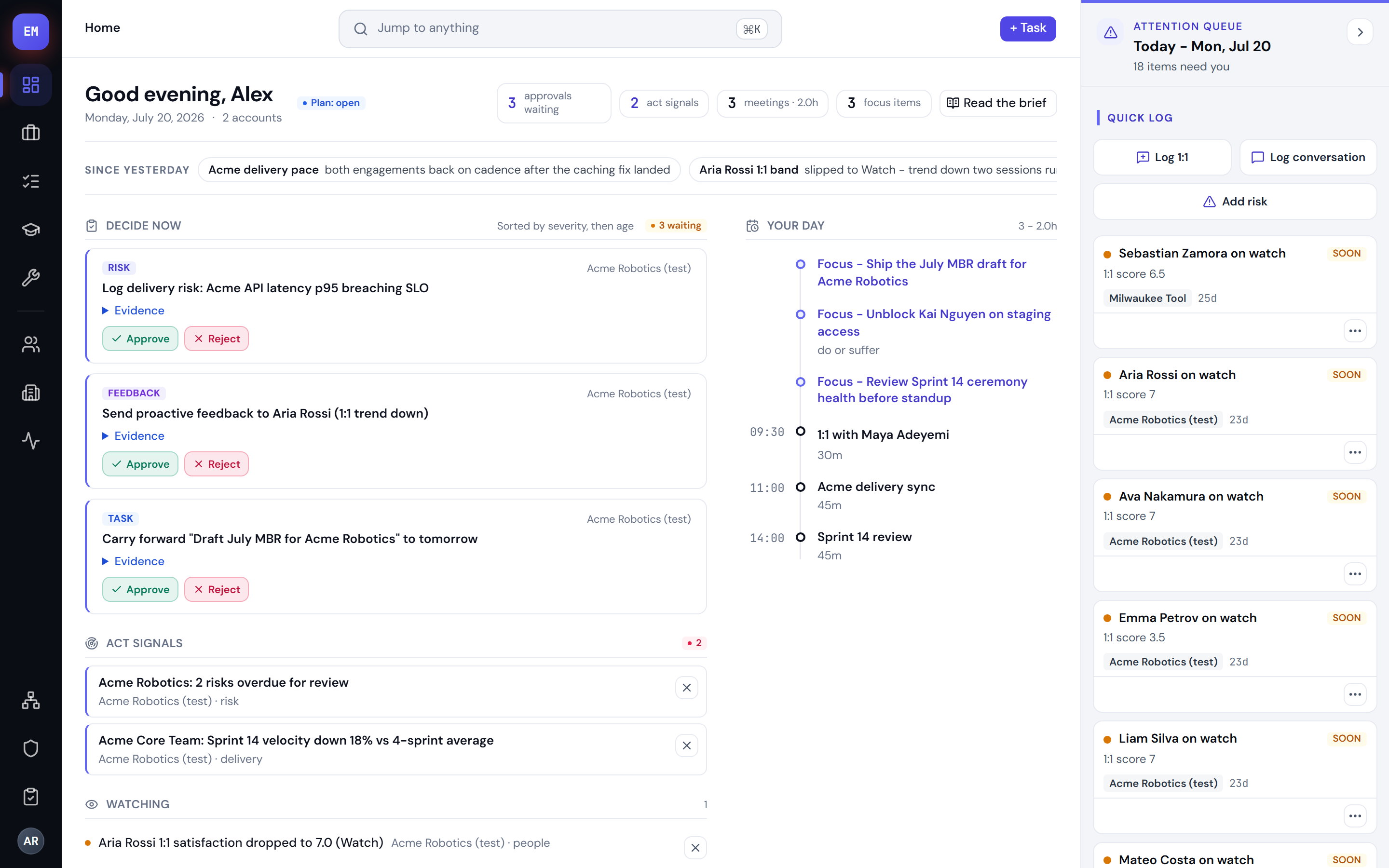
Read it top to bottom:
- Status band. The state of your world in one strip - whether the morning run landed, and the headline vitals for the day.
- Delta ticker. What changed since yesterday - new risks, score moves, fresh signals - so you triage the difference, not the whole world.
- Decide now. The approvals card: everything the routines staged as a proposal (a risk, a conversation log, a carry-forward, a profile change) waits here for a one-tap approve or reject. Next to it, act signals you can dismiss once handled. Nothing judgmental lands without passing through this queue.
- Your day. Today's timeline - your 1:1s, ceremonies and client meetings. Each 1:1 links straight to that teammate's profile so you can skim the last session and your prep before you walk in.
- Reference panels. Portfolio health worst-first, this-week activity, and a data-hygiene row - each item a deep link.
Today - the daily log
Today (/today) is the readable record of your automated day: the morning brief the routine wrote, the evening close-out summary, and a 14-day history you can page back through. Its vitals show whether the morning and evening runs happened, your streak, and how much was handled for you. It is per-EM and owner-only - no one else, founder included, can read your day.
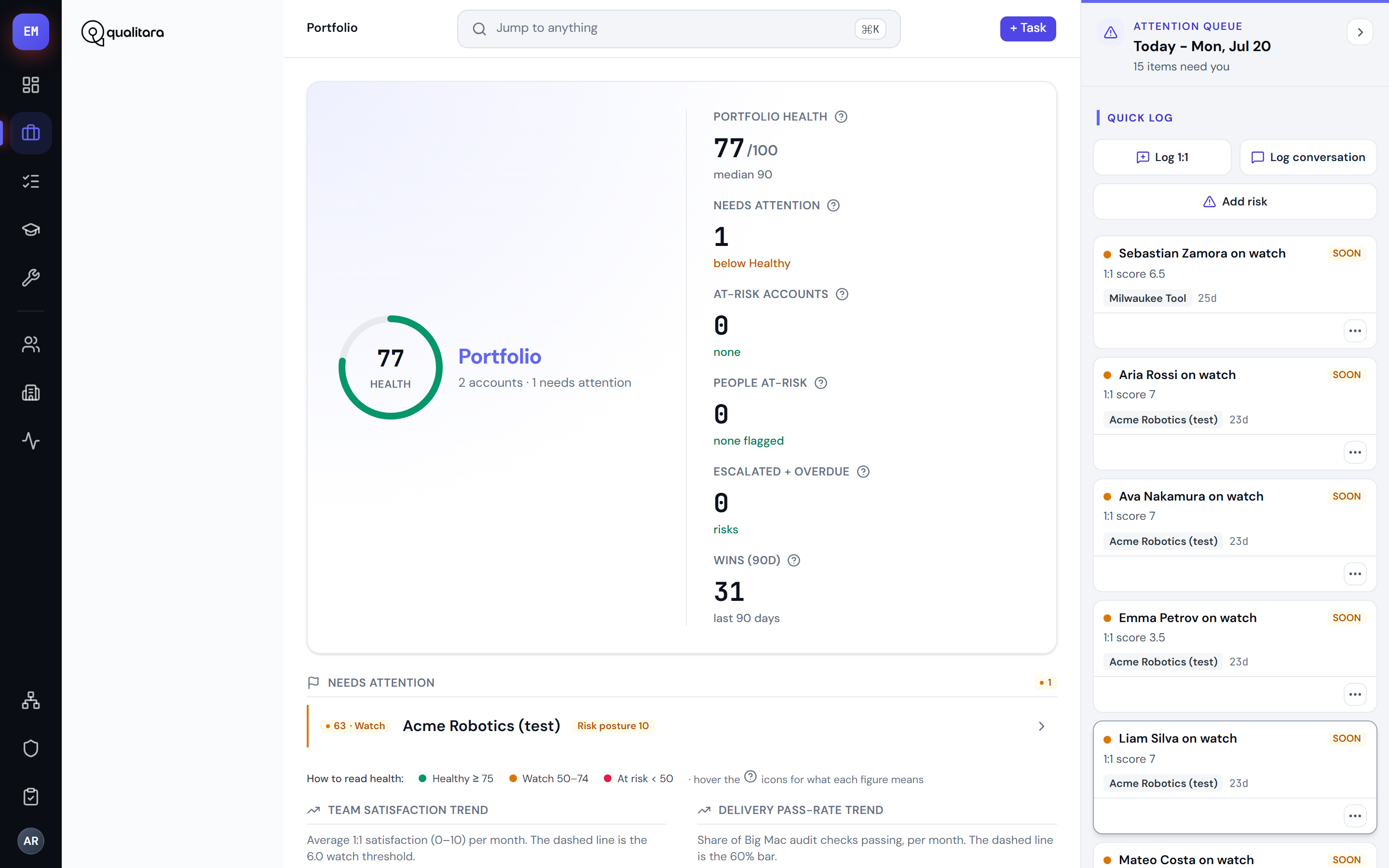
Portfolio - the cross-account cockpit
Tasks - your board
Tasks (/tasks) is your personal board across every account, with four planning views - the board (default, drag-to-plan), priority quadrants (an Eisenhower grid), backlog, and needs review - plus an unassigned queue you can claim from.
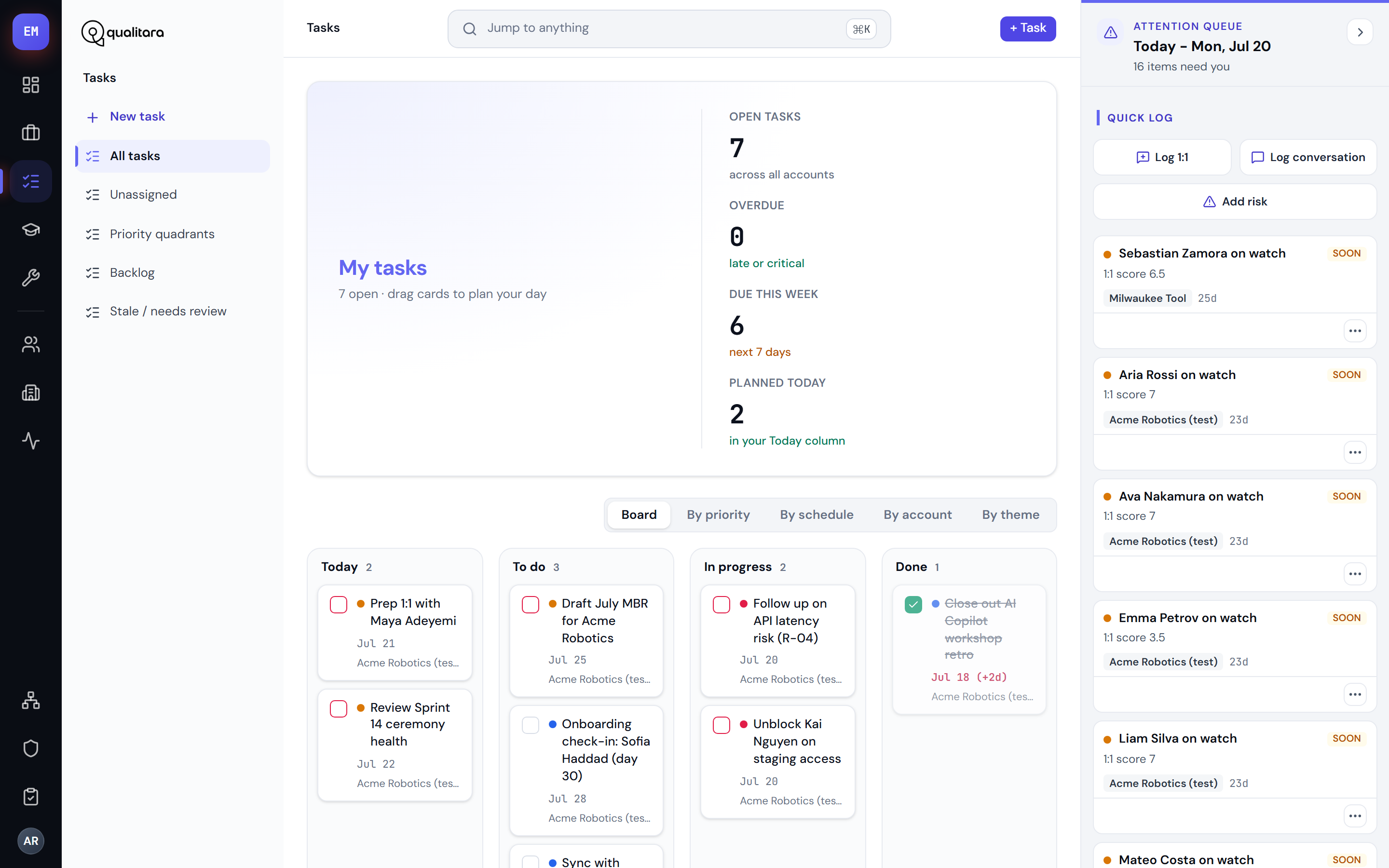
Every task also has a full record page - edit it, move it, comment on it, complete or reopen it. The topbar + Task quick-add feeds this board from anywhere.
Coaching - your craft, graded (private)
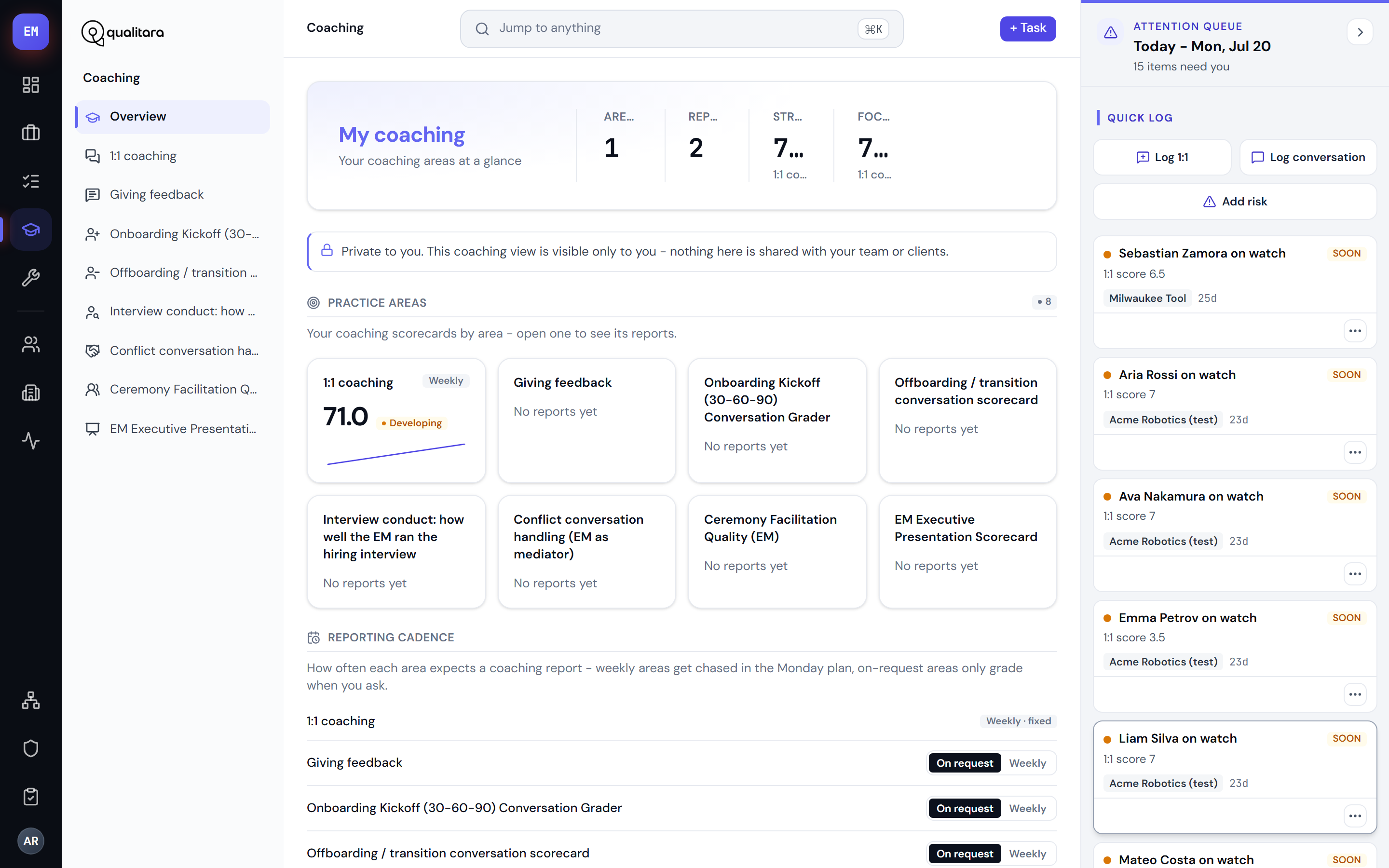
Coaching (/coaching) is owner-private - nothing here is shared with your team, your clients, or your leadership. Each practice area (1:1s, feedback, onboarding, conflict, facilitation, interviewing, offboarding, presenting) has a card with your latest grade; open one for the grade-over-time trend, your development goals (weekly areas) and every report. You also set the grading cadence here.
4People managementPeople
The People pillar is your team. Its context-panel views are Overview, Teammates and Wins.
Team overview
Overview (/team) is your cross-teammate command surface for the account in scope, tabbed Overview / At risk / Feedback / Reviews: who needs attention, this week's wins, open feedback, and performance reviews in flight - each row a drill into the person or the review record.
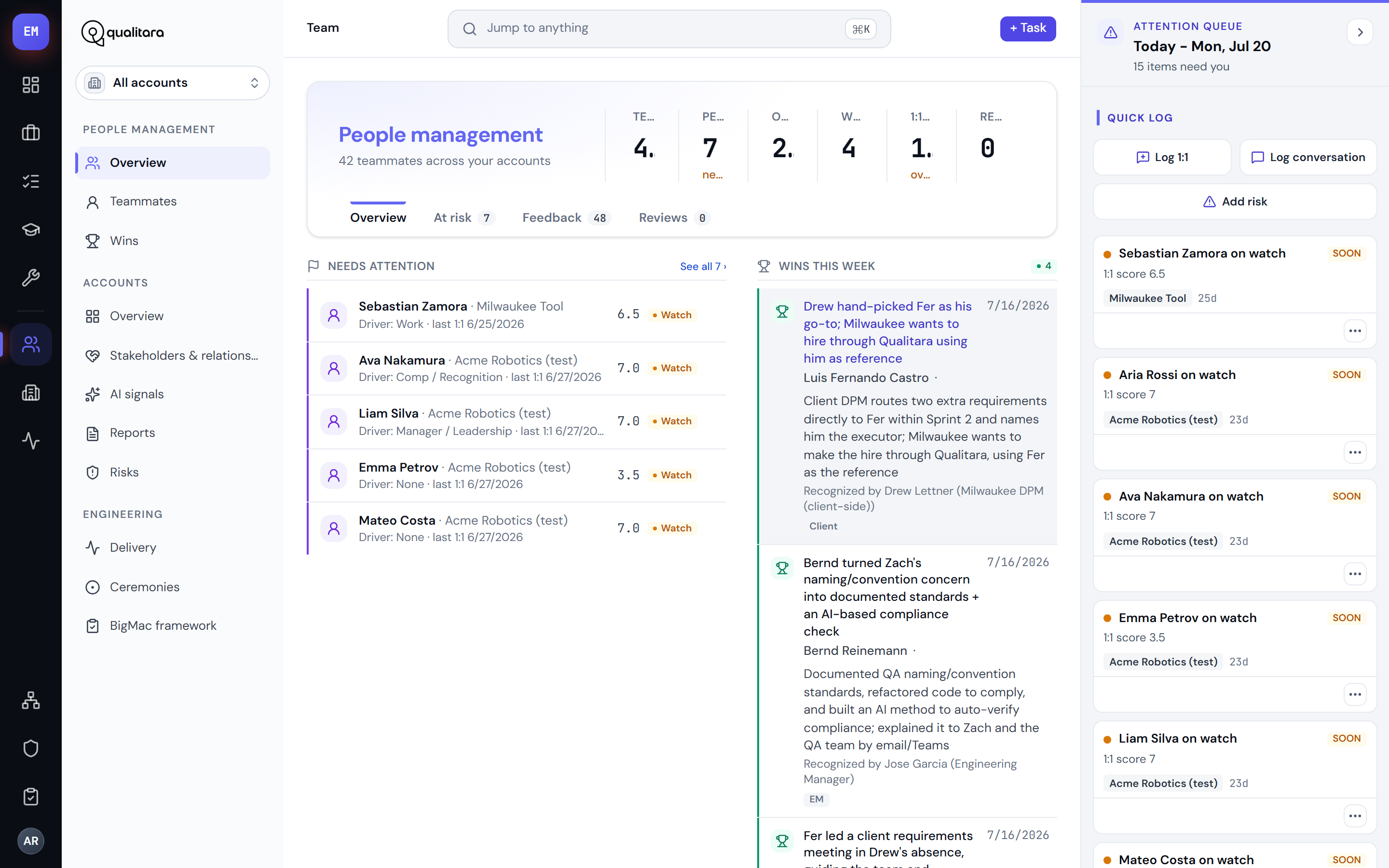
Teammates (/people) is the directory of every teammate and client stakeholder in scope - active count, at-risk, open follow-ups - with Add person to bring someone new into an account and engagement. Wins (/wins) rolls up recognition across the account, or your whole book under "All accounts"; each win opens a full record you can edit or archive.
The person profile
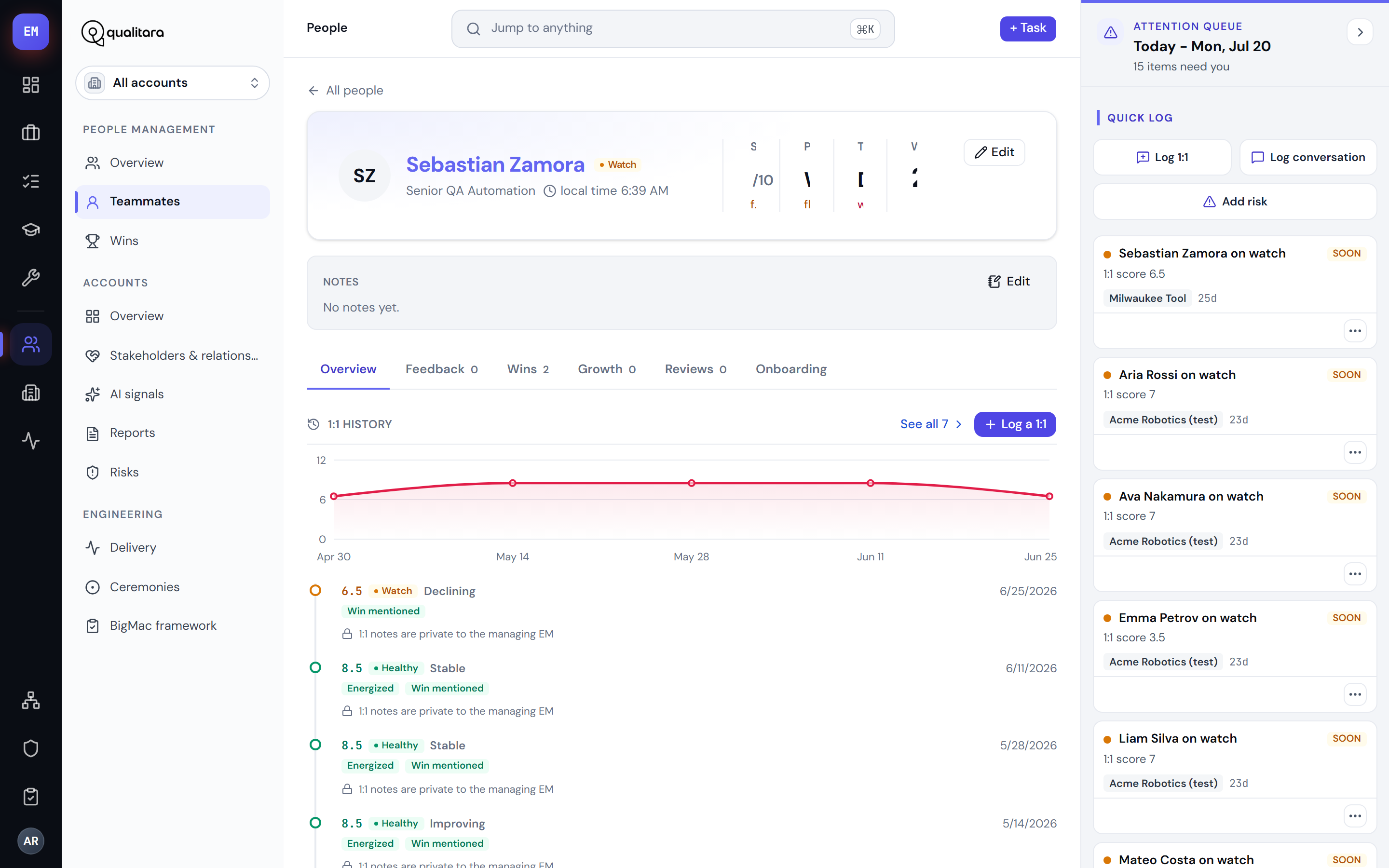
A person's page is the richest record in the platform. For a teammate it's an identity hero (with an edit dialog and your private notes) over seven tabs: Overview (satisfaction trend with 1:1 history, the "for next conversation" carry-forward list, and the owner-only well-being card), Feedback, Wins, Growth (goals with progress), Conflicts, Reviews and Onboarding. For a stakeholder the same page becomes a pre-meeting briefing: an Overview briefing with carry-forwards, a Conversations log, and their comm-plan Meetings.
What you can do from here:
- Log a 1:1 - opens the 1:1 form (date, driver, summary, action items, blockers, asks of you, follow-ups, a Fireflies link, the satisfaction signal flags, and an owner-only well-being note). In practice the evening routine logs most 1:1s for you from the transcript; you open them to review or edit.
- For next conversation - a running carry-forward prep list on the person. Jot a point you want to raise next time ("check how the migration landed", "recognise the on-call save") and it waits on the profile until your next 1:1; resolve it as covered or dropped, or spawn a task from it. The full history lives at
…/carry-forwards, filterable by status - and it's owner-only, so your prep is never someone else's reading. - Log feedback - capture an SBI (situation-behavior-impact) note. Every feedback item has a full record page where you edit it, mark the follow-up done or snoozed, or escalate it.
- Add win, Add goal (growth path with a progress bar), and Create plan / Add checkpoint for onboarding - the 30-60-90 plan editor covers hire type, role, quick win, milestones and approval gates.
- Well-being is an owner-only card. It is private to you, never shared, and never fed into any score.
1:1 history
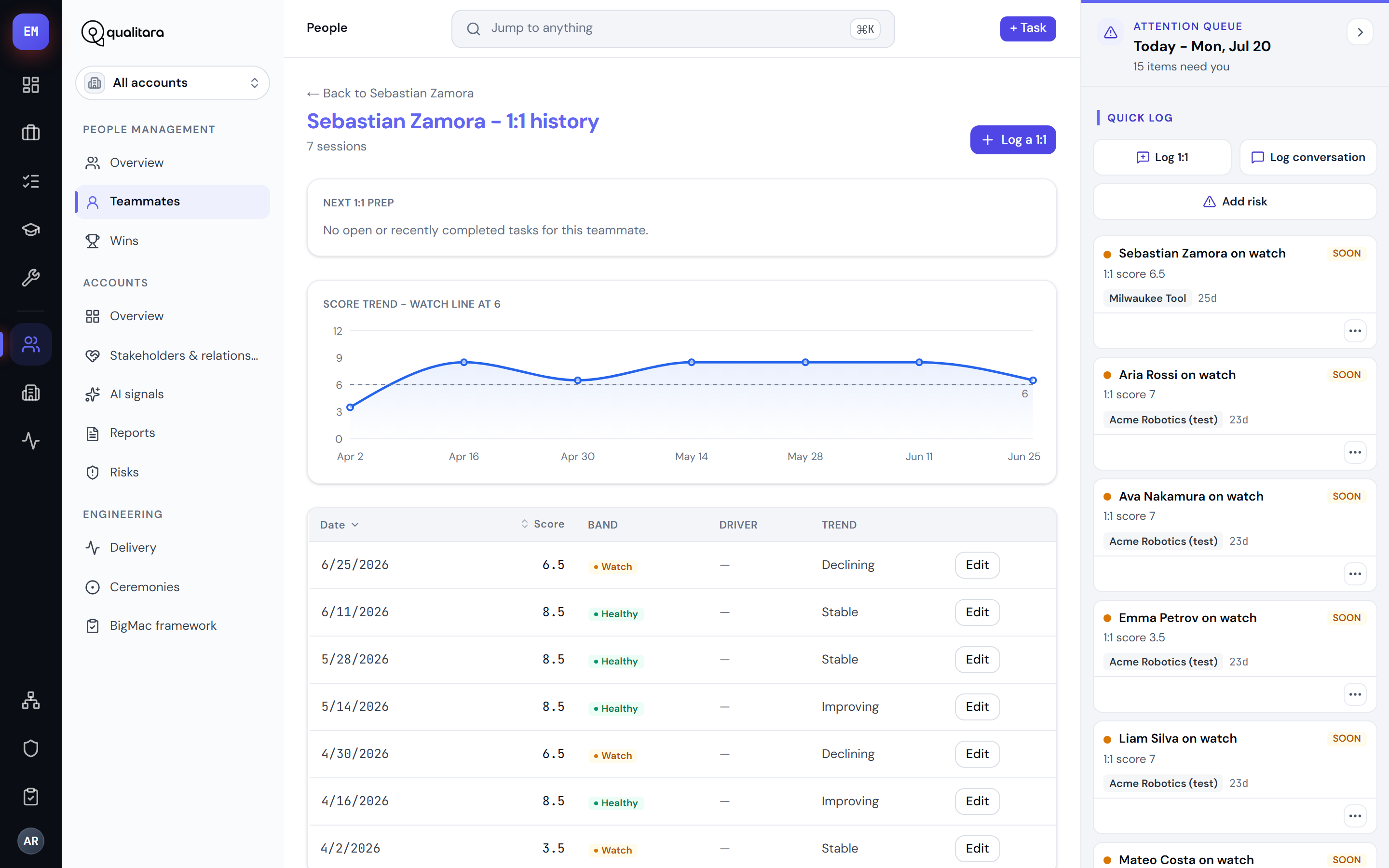
The dedicated 1:1 page (…/one-on-ones) shows every session newest-first with its computed score and band, the satisfaction trend line with a watch line at 6, and a next-1:1 prep panel that gathers the person's pending and recently-done tasks so you walk in current.
Performance reviews
From a person's Reviews tab, New review starts a run for a period: the platform assembles the evidence for you across their 1:1s, feedback, wins and ceremonies and opens a draft. On the review record you rate each dimension, then finalize - and download the handoff as .eml or HTML. Drafts are owner-private until finalized; once final, the record locks. You can also run reviews for a whole team in one batch from an engagement page.
5AccountsAccounts
The Accounts pillar is your client relationships. Context-panel views: Overview, Stakeholders & relationships, AI signals, Reports and Risks.
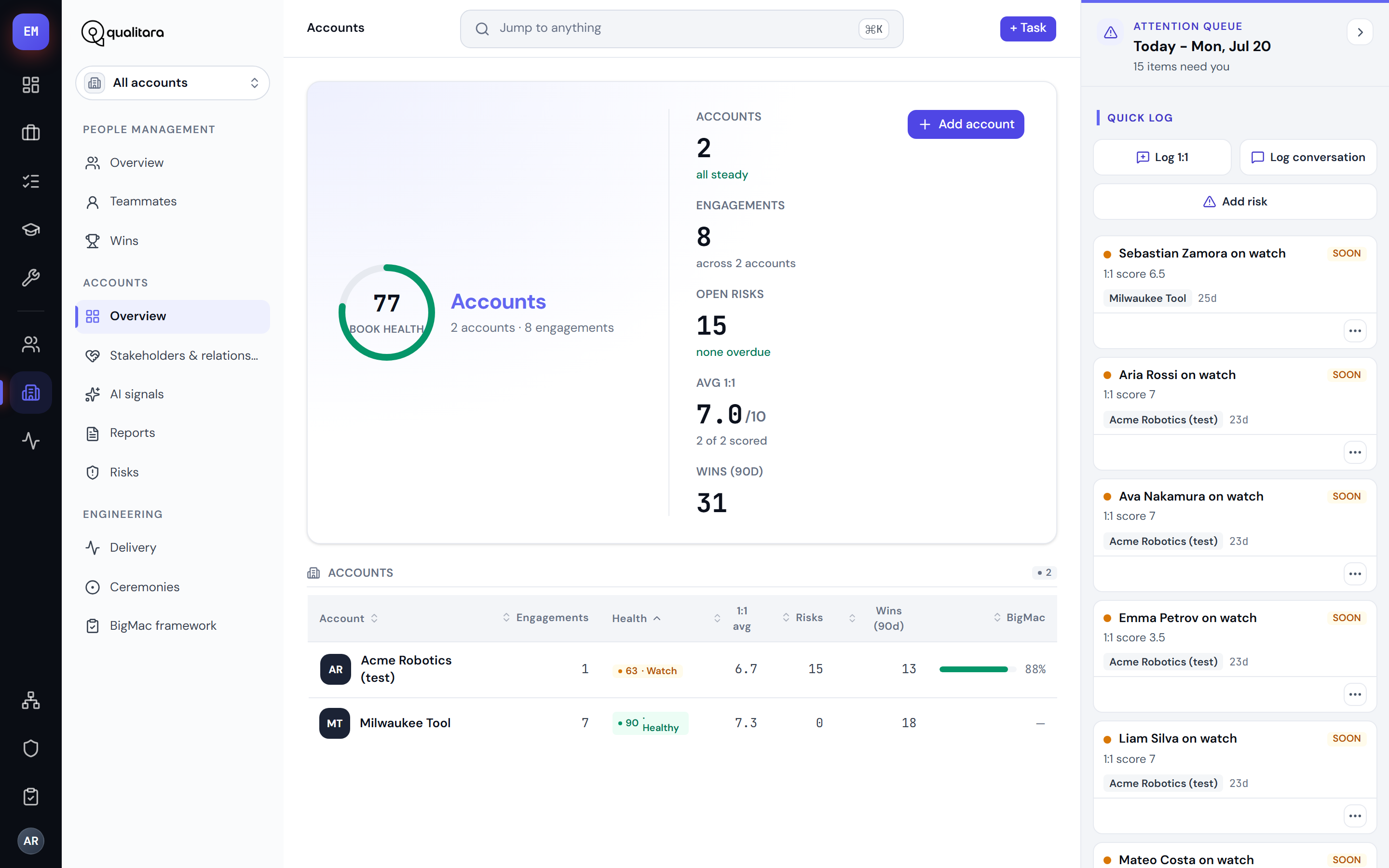
The account cockpit
An account page is a light cockpit hero (name, health and score vitals) over a ten-tab record that walks the whole relationship: Overview (summary strip, insights, engagement chips), Weekly review, Teammates (roster, role catalog, watchlist, skip-levels), Stakeholders (relationship coverage and client commitments), Wins, Comm plan, Risks, Reports, Qualify-out and Activity (the changelog and conversation log). A sticky rail carries the account story and recent changes, and a banner warns you when an account is single-threaded and at-risk at the same time.
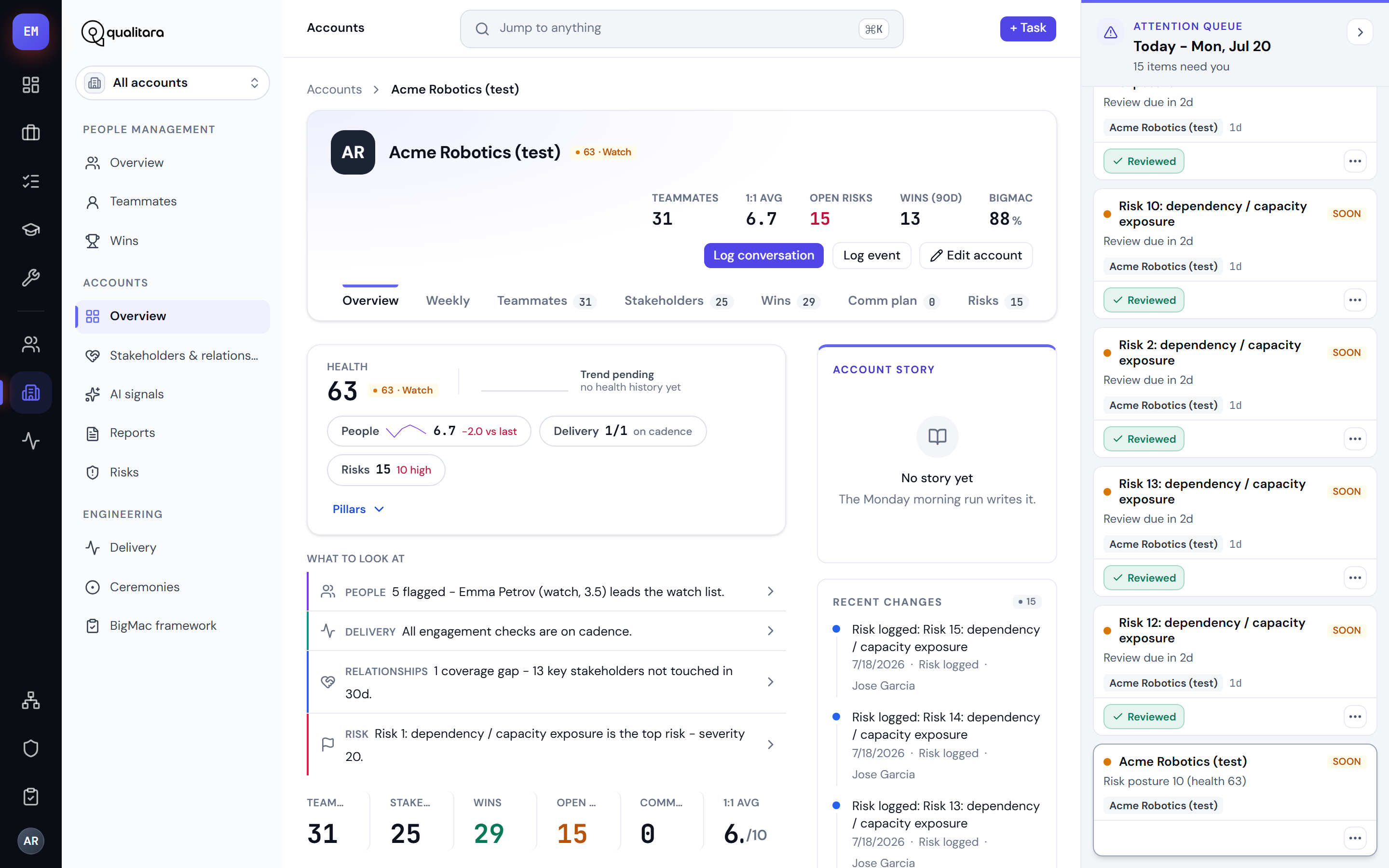
What you do here: maintain the comm plan (save the plan, add or remove touchpoints per stakeholder), keep the role catalog current, append changelog entries for anything material (a stakeholder change, a stage change, an ownership handoff), and open the quarterly qualify-out review. Creating accounts and engagements is admin-only.
The engagement cockpit
Open an engagement and you get the same layout one level down - the engagement's vitals over eight tabs: Overview, Delivery, Teammates, Stakeholders, Wins, Comm plan, Risks and Reports - with a rail of quick facts and the engagement's ceremony configuration. The engagement reads like a smaller account, so you never relearn the screen.
This is also where the delivery record is written. From the engagement you can:
- Log a standup - summary, who actually attended, announcements, a per-person progress/blocker line (with big-blocker flagging), and red flags. Each standup has an edit page.
- Log a retro - sprint, format, sentiment, went-well / didn't, themes, action items and recurring issues.
- Log any other ceremony - sprint planning, sprint review, refinement - with the generic ceremony form.
- Log a kickoff (and spawn its goals into tasks and risks), log a postmortem (incidents), log a skip-level, and append changelog entries.
- Run a team review - start performance-review drafts for the whole engagement roster in one batch.
BigMac audits on an engagement
Two audit surfaces live under each engagement. The quarterly soft audit (…/bigmac/<quarter>) is a hand-filled form that computes a pass rate and renders as a report with Edit and Print. Formal runs (…/bigmac/runs) are the criterion-by-criterion grid: start a run, score each criterion, then finalize it - finalized runs lock and feed the portfolio views in the Engineering pillar.
Qualify-out
The quarterly exit-decision review (/accounts/…/qualify-out/<quarter>): a form seeded with suggestions from the account's own signals, which computes the totals and escalation triggers and renders as a report with Edit and Print. It's the disciplined "should we still be here?" checkpoint, on the record.
Stakeholders & relationships
Relationships (/relationships) is the account-side coverage view: a relationship summary and comm-plan coverage per account, the stakeholder roster, a MEDDICC panel (the qualification of each stakeholder - metrics, economic buyer, decision criteria and process, identified pain, champion) and a sentiment panel tracking how each relationship is trending from the logged conversations.
AI signals
AI signals (/signals) is what the automation noticed: conversations flagged Expansion / Risk / Feedback, persisted signals from the routines, capture gaps (meetings that happened but were never logged - resolve them to close the loop), and tracked items. Dismiss a signal once handled; everything links into the underlying record.
Reports
Reports (/reports) is the cross-account archive of everything the reporting skills generate - MBRs, board reports, relationship-health, retention and sprint-audit reports - grouped by account, newest first, filterable by type.
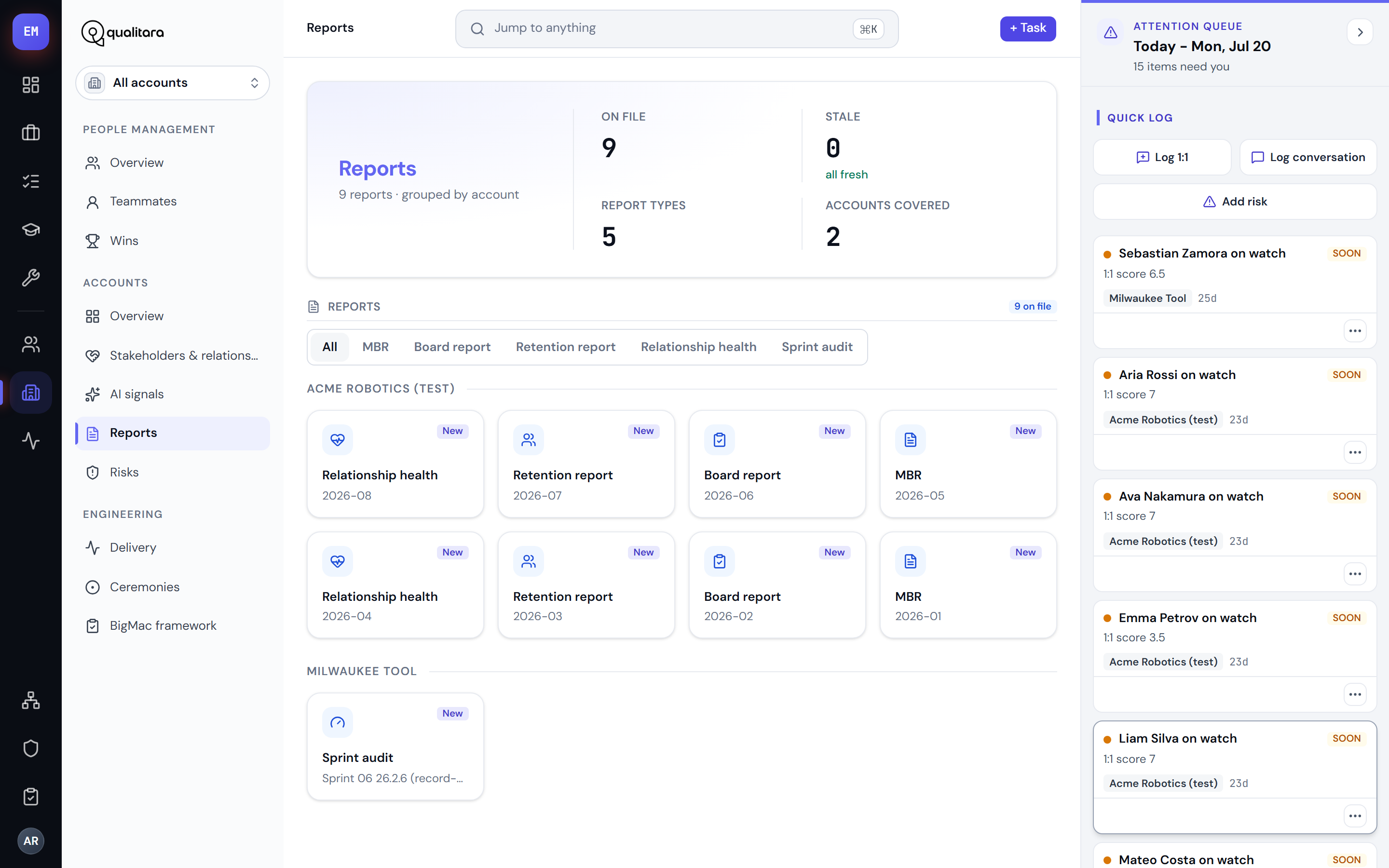
Open any report for the in-app viewer with Download and Open in new tab; sprint audits add audience tabs so you can flip between the client, internal and board versions of the same audit.
Risks
Risks (/risks) is the risk board: open / watching / mitigating / review-overdue vitals, the register sorted by score with Active / Closed / All and review-overdue filters, and the 5×5 probability-by-impact heat grid.
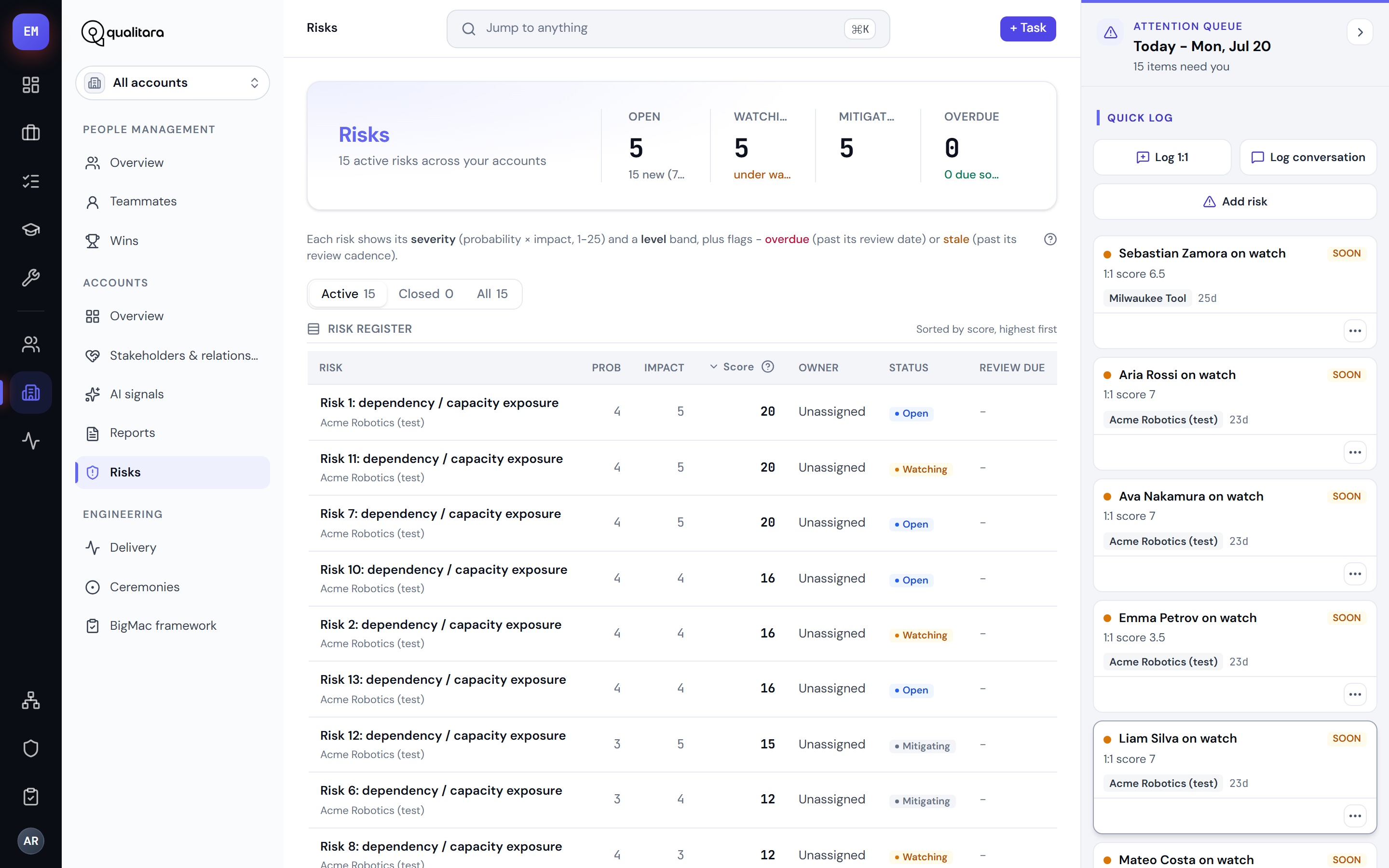
A risk opens as a full record: edit it, append a dated review to its timeline (closing a risk is an audited review step that needs a reason), and discuss it in the record's comment thread with other platform users.
Conversations
Every logged client conversation has its own record page - the notes, sentiment, detected signals, source and Fireflies link - which you can edit or archive. Conversation rows appear on the account's Activity tab, on stakeholder profiles, and in AI signals when flagged.
6Engineering & deliveryEngineering
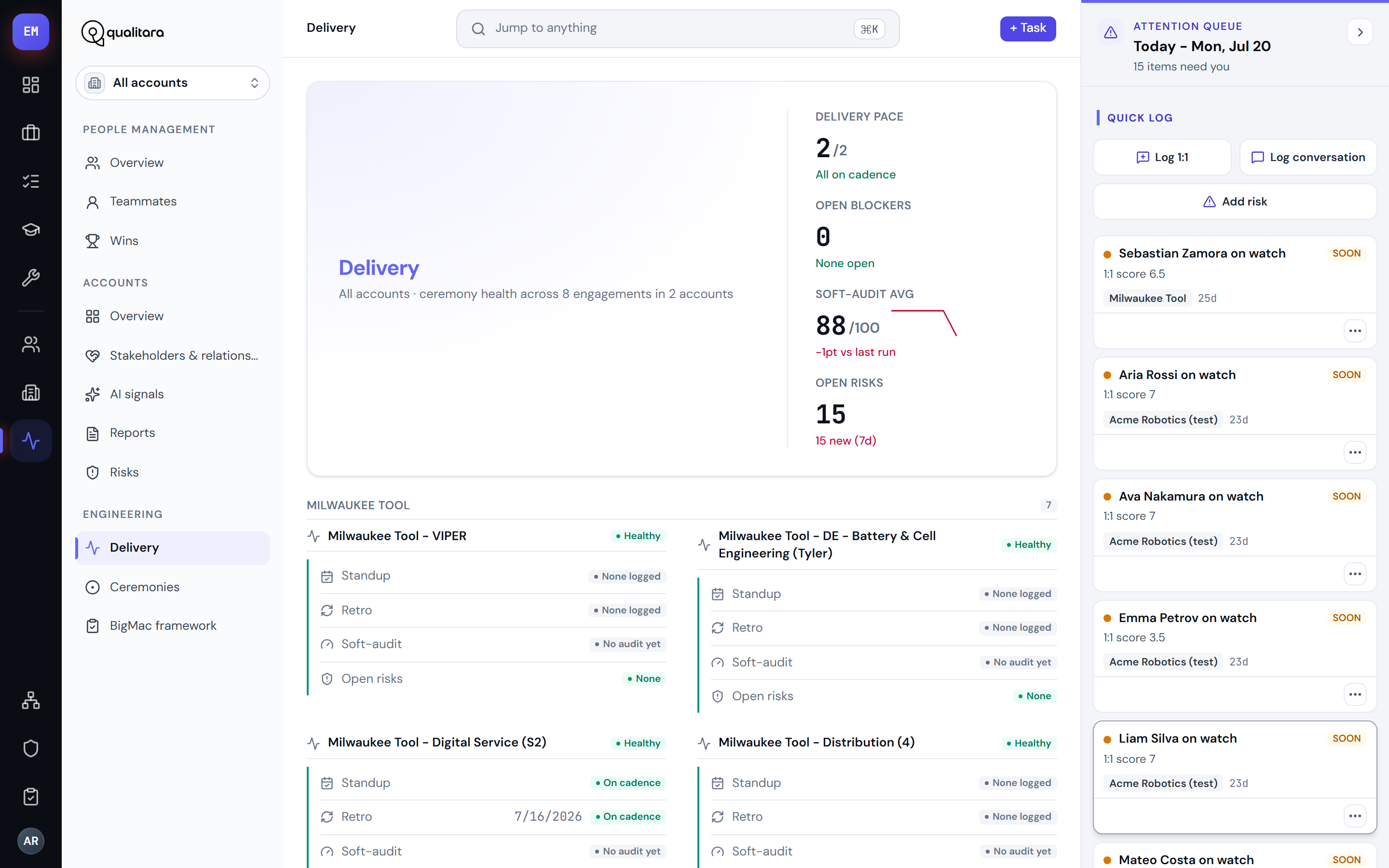
The Engineering pillar is delivery health. Context-panel views: Delivery, OKRs, Ceremonies and BigMac framework.
OKRs (/okrs) shows the quarter's objectives and key results for the account in scope. It's a read-only mirror: Tability stays the system of record and the OKR skills write there first, then mirror the same objectives into the platform so the quarterly cadence is visible where you already work. Pick an account in the scope switcher to see its plan.
Ceremonies (/ceremonies) is the focused cadence surface - standup, retro and BigMac rhythm per engagement, sharing its rows with Delivery. The logging itself happens from the engagement cockpit (section 5); this screen tells you where the cadence is slipping.
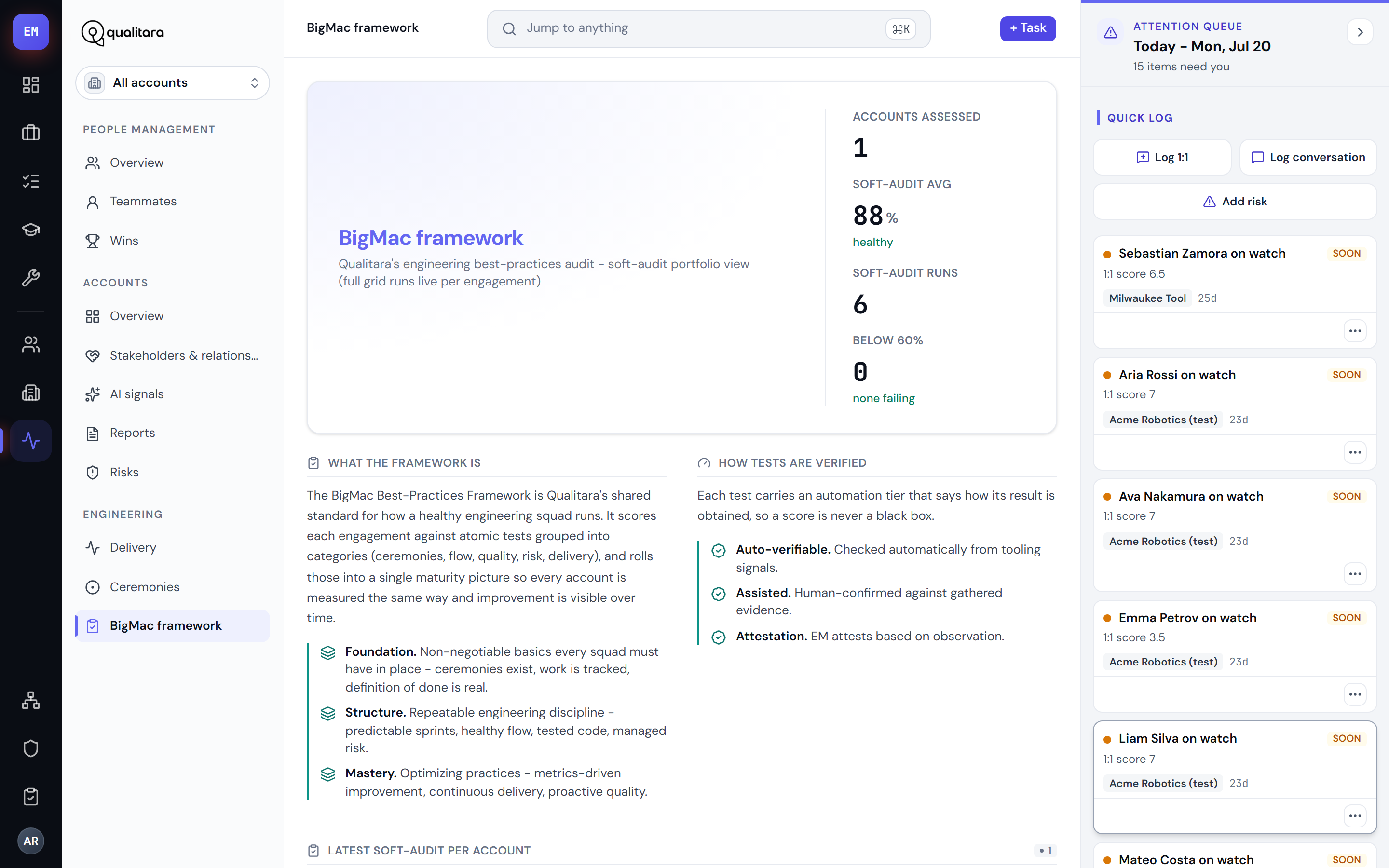
BigMac framework (/bigmac) is Qualitara's engineering best-practices audit as a portfolio: the latest soft audit per account, with the maturity levels and verification tiers explained inline.
7Tools
Tools gathers your personal instruments: Pulse, Meeting load, Supervision and Settings.
- Pulse (
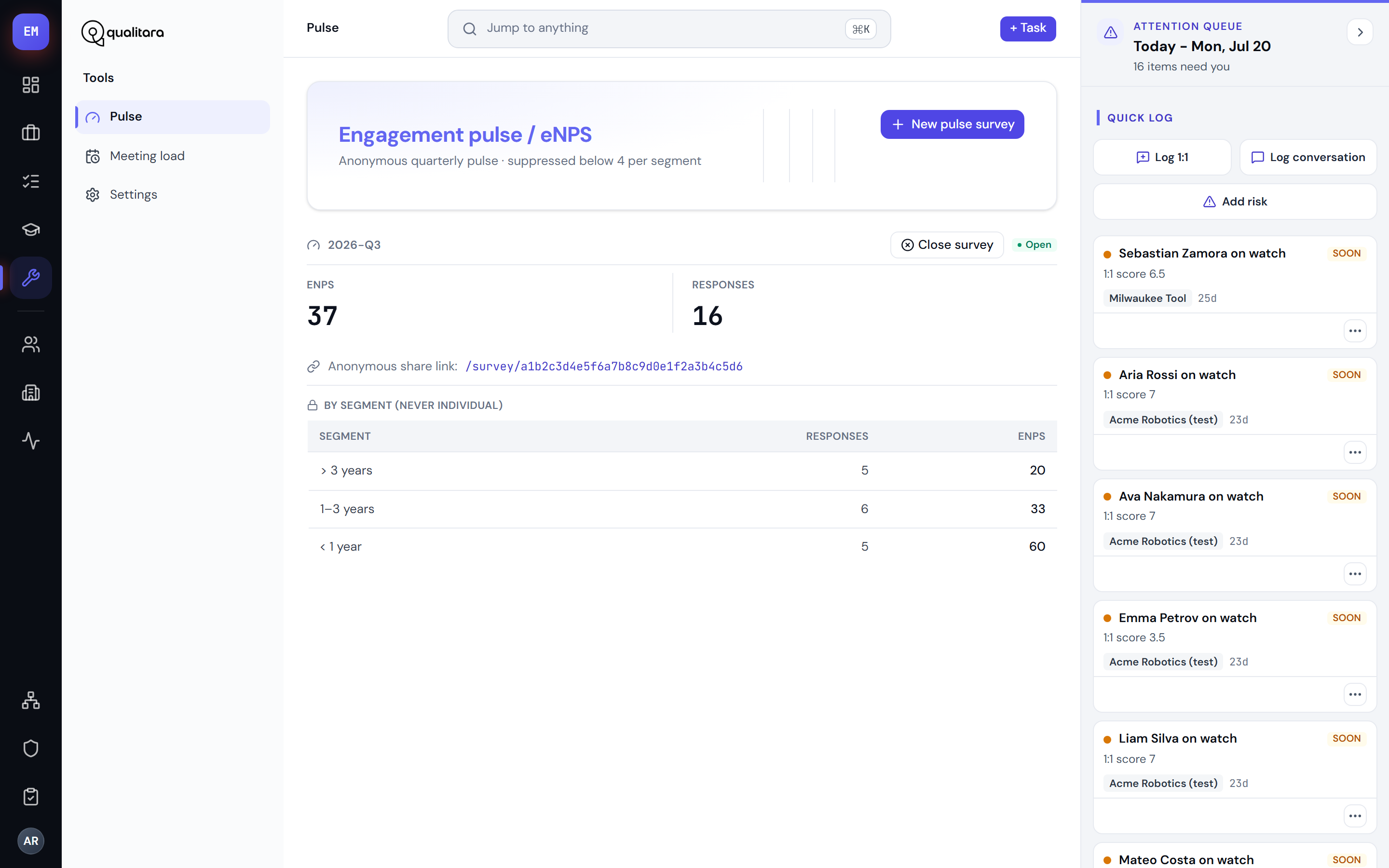
/pulse) - run the anonymous quarterly engagement pulse (eNPS). Create a survey, share the anonymous public link (no login needed to respond), close it, and read the eNPS by segment. Segments below four responses are suppressed - you never see an individual. - Meeting load (
/meeting-load) - your own weekly meeting hours (yours from your M365 calendar, your team's best-effort from Fireflies), fragmentation, focus blocks and the trend. Owner-private. - Supervision (
/supervision) - the ledger of what the automation did: every applied, rejected, expired or reverted proposal over the last 30 days, grouped by run. Reversible applies get an undo; failed applies get a retry. This is the audit trail behind the Home decide-now queue - per-EM, no account switcher. - Settings (
/settings) - six tabs: Profile, Autonomy (the trust-ladder toggles that decide which proposal kinds auto-apply and which wait for your tick, plus expiry windows), Routines (detection rules, schedule notes, cadences and per-engagement ceremony config), Pulse (your survey questions), Thresholds, and Accounts (per-account settings).
8Founder, admin & org
Three surfaces exist for oversight roles; if you're an EM you'll never see them, and that's the point.
- Founder deck (
/founder) - the read-only command deck for founders and the CTO: every account against the five business objectives, scores only. There is no write affordance anywhere on it, and it never shows 1:1 notes or any private narrative. - Org (
/org) - the admin-only org-wide dashboard: the portfolio view across the whole book of business, not just one EM's. - Admin (
/admin) - platform administration: the EM roster (create an EM, set their platform role and their manager for the director oversight line), manage accounts and engagements, the EM-to-account assignment matrix, named org roles, and the BigMac criteria and taxonomy that power the audit grids.
9Who can see what
The platform has three visibility rings, enforced in the database - not by the screens.
Your book
Everything is scoped to the accounts and engagements you're assigned. "All accounts" means all of your accounts; another EM's book simply doesn't exist in your view. The scope switcher only narrows - it never widens.
Owner-only
Some records are private to you even inside your book: 1:1 well-being notes, your coaching dashboard, your meeting load, your carry-forward prep, your private person notes, your Today log, and performance-review drafts until you finalize them. Row-level security returns nothing for anyone else.
Oversight sees scores, not notes
Your director (the EM set as your manager), the CTO and the founders see derived signals - satisfaction scores, risk bands, trends, health indexes - never the narrative underneath. Leadership can watch team health without reading anyone's 1:1.
An admin sets the structure up: assign an EM their manager (the director relationship follows automatically) and grant the founder or CTO platform role. Founder access is read-only everywhere.
10Where the data comes from
Almost everything you've seen was written by a skill or a routine, not typed into a form. That's the point of the platform: you spend your attention on judgment, not entry.
- The morning run sweeps every account you own, fuses the cross-domain signals, stages anything judgmental as a tick-to-approve proposal, and writes today's plan - leading with what changed since yesterday. You meet its output on Home and Today.
- The evening closer logs the day's meetings to the right records - 1:1s, standups, retros, client conversations - stages conversation logs and carry-forwards for your tick, applies the approvals you gave during the day, and closes the day with a summary on Today.
- Recurring reports assemble themselves on cadence and land in the archive; the Supervision ledger keeps the audit trail of everything the automation applied, with undo.
11Your timezone & automations
Your morning run and evening closer don't run on a server clock - they run on your day, and that day is set by one field: your timezone on Settings › Profile.
- Set it once, on your Profile. Open
/settings, the Profile tab, and pick your timezone. It's the one profile field you own - your name and work email stay admin-managed and read-only. The platform validates the zone, so you can only save a real one. - It's your clock, not a preference. Every routine reads it to decide "what day is it for this EM." If it's wrong - say it's left on
UTCbut you're inAmerica/Costa_Rica- an evening run can land on the wrong calendar day and your next morning plan won't line up. Setting your real zone keeps the daily loop on your day. - Your automations run as you. There is no separate bot account. Your morning run and evening closer act under your own identity, in your timezone - a dedicated routine login role is bound to your user behind the scenes. The read-only Automation line under the timezone picker confirms the zone your routines will use; it always mirrors what you set.